Python in Emacs: Vanilla is a Powerful Flavor
Intro
There are a lot of great guides on getting set up with Python in Emacs. Many
of them have titles like "Emacs as a Python IDE" and start off by installing
pyvenv for virtual environment management,
eglot or
lsp-mode for autocomplete/error checking, and
maybe a host of other non-python things, like the
helm or
projectile packages.
This is not that guide.
This guide is for picky @#$%!s like me who want to exhaust every builtin
capability before reaching out to external dependencies. Dependencies that, in
turn, I will also have to learn and manage. Once I really understand
what pyvenv is solving, then, and
only then, will I add it to my
package-selected-packages.

Despite the excellent swath of materials both new and old on how to get
IDE-like performance for Python out of Emacs, the collected materials on just
running "vanilla extract" are fairly scant. The builtin
python.el documentation is thorough and the
keybindings easily discoverable, but not all documentation is collated into a
single place. This guide started out as just my working notes as I began
primarily working in emacs for my Python projects, and has grown into a
workflow guide using nothing but the builtin capabilities of Emacs 28.1+. With
that in mind, the examples and walkthroughs presented here are designed for
emacs -q - i.e. starting emacs without any user
configuration or your distribution's default.el.
Editing
Let's get our feet wet by bopping around some Python buffers first. I'm going
to start up a new python file with C-x C-f and
naming my file editing.py. I'm going to start by
just adding a couple functions and a print statement, obfuscating the typical
"Hello, world!" example a bit by introducing some functions and a "main"
section right away.
# These funtions are a little basic and silly right now, but we'll use
# them to showcase some Emacs features later on.
def hello_text():
    """Just gives back 'Hello'"""
    return "Hello"


def world_text():
    """Just gives back 'world!'"""
    return "world!"


if __name__ == "__main__":
    # Emacs 28.1+ has f-string syntax highlighting built in
    print(f"{hello_text()}, {world_text()}!")
By visiting this file, Emacs automatically goes into
python-mode, which turns on a lot of
Python-specific functionality. If you're impatient like me and want to see
everything that's available right away, I'd start with
C-c C-h from the
editing.py buffer to see key commands specific
to python-mode, and also use
C-h a python to see every command involving the word
"python" in some way. Out of the box we also get syntax highlighting,
including within f-strings.
Useful C-c commands
Emacs typically has commands that are specific to the active major
mode bound to C-c C-<letter>. What each
<letter> does will depend on the buffer you're currently in and what
major mode is active. In our case, that's
python-mode, which has a lot of handy shortcuts
already mapped out. For any of the keyboard shortcuts you can always use
C-h k, or
C-h f for the function names (prefixed by
M-x below) to get the official documentation.
C-c C-p or
M-x run-python to start a python REPL
This boots up what Emacs calls an "inferior Python shell". "Inferior" here
just means that Python is running as a subprocess of Emacs; not that there's
some other, "superior" method of running a Python process. If you need to
control the exact command Emacs runs to start the shell, you can use the
universal C-u prefix before either
C-c C-p or
M-x run-python to edit the command Emacs runs.
Based on the previous article,
what I'm frequently doing is holding down the Ctrl key with my left little
finger, then rapidly typing u,
c, and p to get
C-u C-c C-p, bringing up a minibuffer prompt
like this:
Run Python: python3 -i█
Where █ is point (my cursor). I then use
C-a to move point back to the start and add a
poetry run:
Run Python: poetry run█python3 -i
Emacs is typically smart enough to figure out what to do even if we leave off
the -i, but generally it's good to leave it in
there.
C-c C-z jumps to python REPL if already running
Once the REPL is running, this is a very handy one for swapping back and forth between a file I'm actively editing and a running Python process
C-c C-{c,e,r} for sending chunks to the REPL
A handy complement to C-c C-z, these commands
are for taking pieces of Python that I'm actively editing and sending them to
the Python buffer all at once.
C-c C-v or
M-x python-check
C-c C-t ... or
python-skeleton-...
Using C-c C-t d and
C-c C-t c it's easy to insert new
def and
class statements (think
t for "template",
d for "def", and
c for "class"). Ater invoking one of these,
Emacs will guide us through the process of filling out each part needed to
define a new function or class via the minibuffer. Using
C-g at any point while editing the template wil
revert the buffer back to its original state, as if you never started filling
out the skeleton.
# editing.py
# --snip--
# Here we use `C-c C-t d` and follow the prompts to design a new
# function signature.
def whatever(my_string: str = hello_text, my_integer: int = 0):
    """Whatever, man"""
    return f"{hello_text}, {my_integer}"

# Next, `C-c C-t c` to make a new class
class MyGuy:
    """My guy is ALWAYS there for me"""
    pass
# --snip-- "__main__"
C-c C-j or
M-x imenu
The nimble, builtin imenu is a way to quickly
navigate between major symbol definitions in the current buffer - especially
those off screen. In our editing.py we now have
three functions, hello_text(),
world_text(), and
whatever(), and one class
MyGuy. If we use
C-c C-j, a minibuffer menu like this comes up:
1/5 Index item: █
*Rescan*
MyGuy.(class)
whatever.(def)
world_text.(def)
hello_text.(def)
My minibuffer displays a vertical preview of the options because I've set
(fido-mode) and
(vertical-fido-mode) in my
init.el, both of which are included in Emcacs
28.1 or later. Then, if I partially type out a result the list will filter
down to possible completions:
1/1 Index item: My█
MyGuy.(class)
imenu is very, very handy across Emacs, not just
for Python, so it's worth trying in a variety of major modes.
Running
Now its time to actually start executing some code. Before getting to all the
complexity of virtual environments, we'll start simply by just invoking the
system Python for our script. Once that feels comfortable, we'll throw in all
the venv goodies.
As a script with M-x compile
This mode has built-in error parsing, so it's the best way to run a script for
real if we want to quickly navigate any traceback messages that come up.
Conversely, the M-& async shell command does
not
have error parsing, so it's not the right tool for launching processes we have
to debug. Same goes for booting up a shell and running Python from there.
Taking our script from the previous section, if we run
M-x compile and give it an argument of
python3 editing.py, up pops the
*compilation* buffer, with the starting time,
output of our program, and finish time.
-*- mode: compilation; default-directory: "~/repos/renzmann.github.io/content/posts/006_emacs_2_python/" -*-
Compilation started at Sun Aug 14 13:50:39

python3 editing.py
Hello, world!

Compilation finished at Sun Aug 14 13:50:39
Now, let's try a different script, with an error in it:
# hello_error.py
print("Not an error yet!")
fdafdsafdsafdsa
print("Shouldn't make it here...")
Now, M-x compile will error out:
-*- mode: compilation; default-directory: "~/repos/renzmann.github.io/content/posts/006_emacs_2_python/" -*-
Compilation started at Sun Aug 14 13:53:26

python3 hello_error.py
Not an error yet!
Traceback (most recent call last):
  File "/home/robb/repos/renzmann.github.io/content/posts/006_emacs_2_python/hello_error.py", line 4, in <module>
    fdafdsafdsafdsa
NameError: name 'fdafdsafdsafdsa' is not defined

Compilation exited abnormally with code 1 at Sun Aug 14 13:53:26
Emacs will parse the error message, so that after "compiling", we can use
M-g M-n and
M-g M-p to move between error messages, or just
click the link provided by the
*compilation* buffer directly.
If just parsing Python tracebacks doesn't excite you,
mypy is also supported out of the box. Assuming
mypy is already installed,
M-x compile with
mypy hello_error.py as the command results in
this:
-*- mode: compilation; default-directory: "~/repos/renzmann.github.io/content/posts/006_emacs_2_python/" -*-
Compilation started at Sun Aug 14 14:02:03

.venv/bin/mypy hello_error.py
hello_error.py:4: error: Name "fdafdsafdsafdsa" is not defined
Found 1 error in 1 file (checked 1 source file)

Compilation exited abnormally with code 1 at Sun Aug 14 14:02:04
The hello_error.py:4: error: ... message will be
a functional link, just as before. mypy is much
more suitable for general error-checking though, so as scripts (and bugs)
grow, the M-x compile command can keep up:
# errors.py
import typing

import requests
import aaaaaaa

foo
print(typing.fdafdsafdsafdsafdsafdsafdsa)


def whatever(x: str) -> str:
    """Here's a docstring!"""
    return x + 1
M-x compile RET mypy errors.py
-*- mode: compilation; default-directory: "~/repos/renzmann.github.io/content/posts/006_emacs_2_python/" -*-
Compilation started at Sun Aug 14 14:06:55

.venv/bin/mypy errors.py
errors.py:6: error: Cannot find implementation or library stub for module named "aaaaaaa"
errors.py:6: note: See https://mypy.readthedocs.io/en/stable/running_mypy.html#missing-imports
errors.py:8: error: Name "foo" is not defined
errors.py:9: error: Module has no attribute "fdafdsafdsafdsafdsafdsafdsa"
errors.py:14: error: Unsupported operand types for + ("str" and "int")
Found 4 errors in 1 file (checked 1 source file)

Compilation exited abnormally with code 1 at Sun Aug 14 14:06:55
Now, we can use M-g M-n and
M-g M-p to quickly navigate between the errors
in our code, even after navigating away from the original
errors.py buffer - Emacs will remember what's
going on in the *compilation* buffer so we can
hop all around the code base while addressing errors one at a time.
Interactively with the Python shell
python-mode centers heavily around the use of an
active, running Python session for some of its features, as we'll see in the
next section. Its documentation recommends regular use of
C-c C-c, which sends the entire buffer to the
active inferior Python process. That means actually executing Python
code, which may feel a bit dangerous for those of us who grew up with static
analysis tools. So the first thing we need to make sure we don't accidentally
kick off our whole script is ensure that the main part of our program is
properly ensconced.
# editing.py
# --snip--
if __name__ == "__main__":
    print(f"{hello_text()}, {world_text()}!")
Code Completion
Emacs uses the currently running *Python* process for looking up
symbols to complete. As such,
python.el recommends using
C-c C-c
to send the entire buffer's contents to the Python shell periodically.
if __name__ == "__main__" blocks do not execute when
using C-c C-c. To send all code in the current
buffer, including the __main__ block, instead we
must use C-u C-c C-c.
Another awkward default in Emacs is that what we typically know of as
"tab-complete" is bound to M-TAB, or the
equivalent C-M-i (C-i and
TAB are the same thing). On most Windows and Linux desktops,
Alt+Tab changes the active window, and C-M-i is much too
cumbersome to be a reasonable completion shortcut. I prefer just being able to
hit TAB to invoke
completion-at-point, so I use this snippet in my
init.el:
;; init.el
;; Use TAB in place of C-M-i for completion-at-point
(setq tab-always-indent 'complete)
Now to demonstrate this new completion power. In our python file
editing.py, I know we have a function called
hello_text(). Within the main block, I might
have been typing something that looked like this:
if __name__ == "__main__":
    print(f"{hell█
Where █ is point. Attempting a
completion-at-point using
C-M-i (or just
TAB as I have re-bound it above) will yield …
nothing. Maybe the indentation cycles, or it says "No match", or just - no
response. What we require is a running inferior Python process, which
will look up completion symbols. After booting up Python with
C-c C-p and sending all the current buffer
contents with C-c C-c, hitting
TAB completes the
hell into
hello_text:
if __name__ == "__main__":
    print(f"{hello_text█
In the case that the completion is ambiguous, a
*completions* buffer will pop up, prompting for
input on how to continue. Another nice thing about this completion method is
that it respects your completion-styles setting.
Personally, I keep mine globally set to include the
flex style, which closely mimics fuzzy matching
styles like you get in VSCode, JetBrains, or fzf:
;; init.el
(setq completion-styles '(flex basic partial-completion emacs22))
This allows me to type something like hltx, hit
TAB and it completes to
hello_text.
Debugging
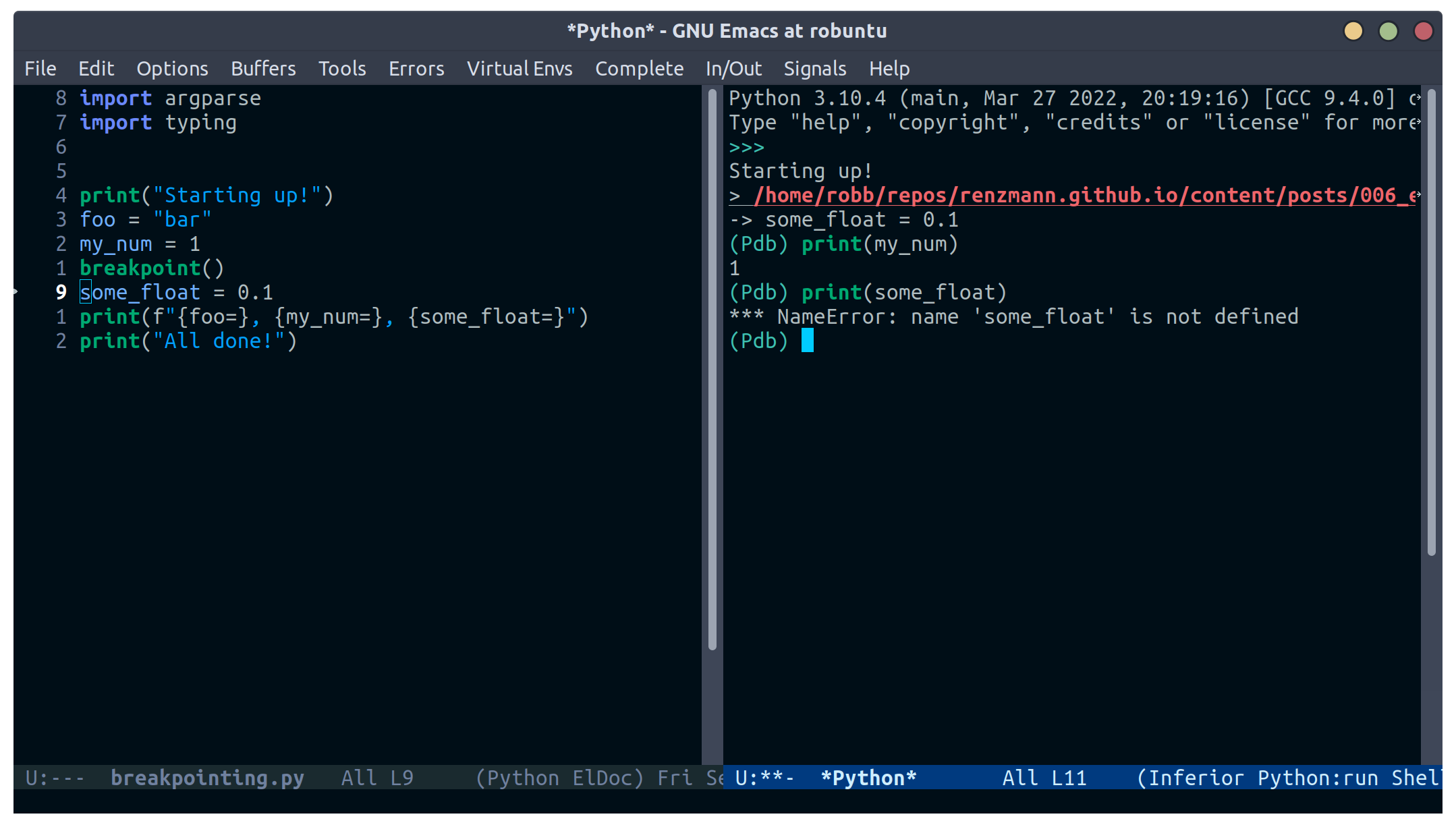
If by running our Python code we encounter the
breakpoint() builtin, Emacs will automatically
break into pdb/ipdb (depending on your
PYTHONBREAKPOINT environment variable), jump to the breakpoint in
the code, and put an arrow at the next line to execute.
M-x pdb
Simply populates the command to run with
python -m pdb. Can be configured with the
variable gud-pdb-command-name
The poetry +
pyright stack
The stack I use most frequently (for now) consists of:
python3.10as the Python runtime-
poetryfor dependency and environment management1 -
pyrightfor error checking2 emacsfor everything else
Each component should, in theory, be easy to replace. That is, if I want
conda as a package manager and
flake8 or mypy for
linting/type checking, it should be easy to do a drop-in replacement for them.
For those who haven't heard the good news of
poetry, it takes care of a lot of
headaches that every pythonista regularly deals with. It manages your virtual
environment (creation and update),
pyproject.toml specification, and a
poetry.lock file that serves as a replacement
for requirements.txt, housing exact dependency
version numbers for project collaborators to install. All of these are
automatically kept in sync, so you never have the case like with
conda where someone does a
conda or
pip install into their environment but never
bothers to update the setup.py,
environment.yml,
requirements.txt or whatever.
Earlier we mentioned that running our Python scripts via the
M-& async shell command interface wasn't a
great use case for it. However, using it to set up a poetry environment is a
fantastic example of when it is appropriate.
Async shell command: poetry init -n --python=^3.10
Assuming the poetry command ran without error, it plopped down the
pyproject.toml in the same directory as
errors.py. In a similar vein, we can add project
dependencies using M-&
Async shell command: poetry add pyright requests
The *Async Shell Command* buffer will update as
poetry runs and installs the required dependencies. Following this, we should
have the pyright CLI installed to the virtual
environment poetry set up for us. As a sanity check, I'll start up either
M-x shell or
M-x eshell (whichever happens to be behaving
better that day) to just get a simple cross-platform shell running where I can
try it out:
~/tmp $ # using the same `errors.py` as in the earlier sectons
~/tmp $ poetry run pyright errors.py
No configuration file found.
pyproject.toml file found at /home/robb/repos/renzmann.github.io/content/posts/006_emacs_2_python.
Loading pyproject.toml file at /home/robb/repos/renzmann.github.io/content/posts/006_emacs_2_python/pyproject.toml
Pyproject file "/home/robb/repos/renzmann.github.io/content/posts/006_emacs_2_python/pyproject.toml" is missing "[tool.pyright]" section.
stubPath /home/robb/repos/renzmann.github.io/content/posts/006_emacs_2_python/typings is not a valid directory.
Assuming Python platform Linux
Searching for source files
Found 1 source file
/home/robb/repos/renzmann.github.io/content/posts/006_emacs_2_python/errors.py
  /home/robb/repos/renzmann.github.io/content/posts/006_emacs_2_python/errors.py:5:8 - error: Import "aaaaaaa" could not be resolved (reportMissingImports)
  /home/robb/repos/renzmann.github.io/content/posts/006_emacs_2_python/errors.py:7:1 - error: "foo" is not defined (reportUndefinedVariable)
  /home/robb/repos/renzmann.github.io/content/posts/006_emacs_2_python/errors.py:7:1 - warning: Expression value is unused (reportUnusedExpression)
  /home/robb/repos/renzmann.github.io/content/posts/006_emacs_2_python/errors.py:8:14 - error: "fdafdsafdsafdsafdsafdsafdsa" is not a known member of module (reportGeneralTypeIssues)
  /home/robb/repos/renzmann.github.io/content/posts/006_emacs_2_python/errors.py:13:12 - error: Operator "+" not supported for types "str" and "Literal[1]"
    Operator "+" not supported for types "str" and "Literal[1]" when expected type is "str" (reportGeneralTypeIssues)
  /home/robb/repos/renzmann.github.io/content/posts/006_emacs_2_python/errors.py:4:8 - warning: Import "requests" could not be resolved from source (reportMissingModuleSource)
4 errors, 2 warnings, 0 informations
Completed in 1.033sec
Emacs actually has a couple ways of running error-checking tools like this.
The typical one is M-x compile, which we saw
earlier, but there's also C-c C-v for
M-x python-check. The latter will automatically
check for tools like pyflakes or
flake8, but can be configured with the
python-check-command variable to pre-populate
the command to run. Like M-x compile,
M-x python-check will use a buffer that looks
identical to *compilation* in every way except
name: it will be called the
*Python check: <command you ran>* buffer.
For me, that means I typically have something like
(setq python-check-command "poetry run pyright")
and then C-c C-v from a python buffer will
prompt like this while errors.py is my active
buffer
Check command: poetry run pyright errors.py
Adding error parsing to the pyright compile output
Unlike the mypy output, the error messages from
pyright aren't links, and we can't hop between
messages using M-g M-n and
M-g M-p like before. In order to gain this
functionality, we need to add a regex that can parse
pyright messages. There are two objects of
interest to accomplish this:
- compilation-error-regexp-alist
- compilation-error-regexp-alist-alist
Here's the formal description from
C-h v compilation-error-regexp-alist:
Alist that specifies how to match errors in compiler output.
On GNU and Unix, any string is a valid filename, so these
matchers must make some common sense assumptions, which catch
normal cases.  A shorter list will be lighter on resource usage.

Instead of an alist element, you can use a symbol, which is
looked up in ‘compilation-error-regexp-alist-alist’.
In not so many words, this says we should modify the
*-alist-alist version, and simply add a symbol
to the *-alist variable. Examining the current
value via
C-h v compliation-error-regexp-alist-alist, it's
easy to see that we're after an expression a bit like this,
(add-to-list 'compilation-error-regexp-alist-alist
             '(pyright "regexp that parses pyright errors" 1 2 3))
eventually replacing the string in the middle with an actual Emacs regexp.
Thankfully, Emacs has the M-x re-builder built
in for doing exactly that! Since
*Python check: poetry run pyright errors.py* is
a buffer like any other, we can hop over to it, and run
M-x re-builder to piece together a regex that
extracts file name, line number, and column number from each message.
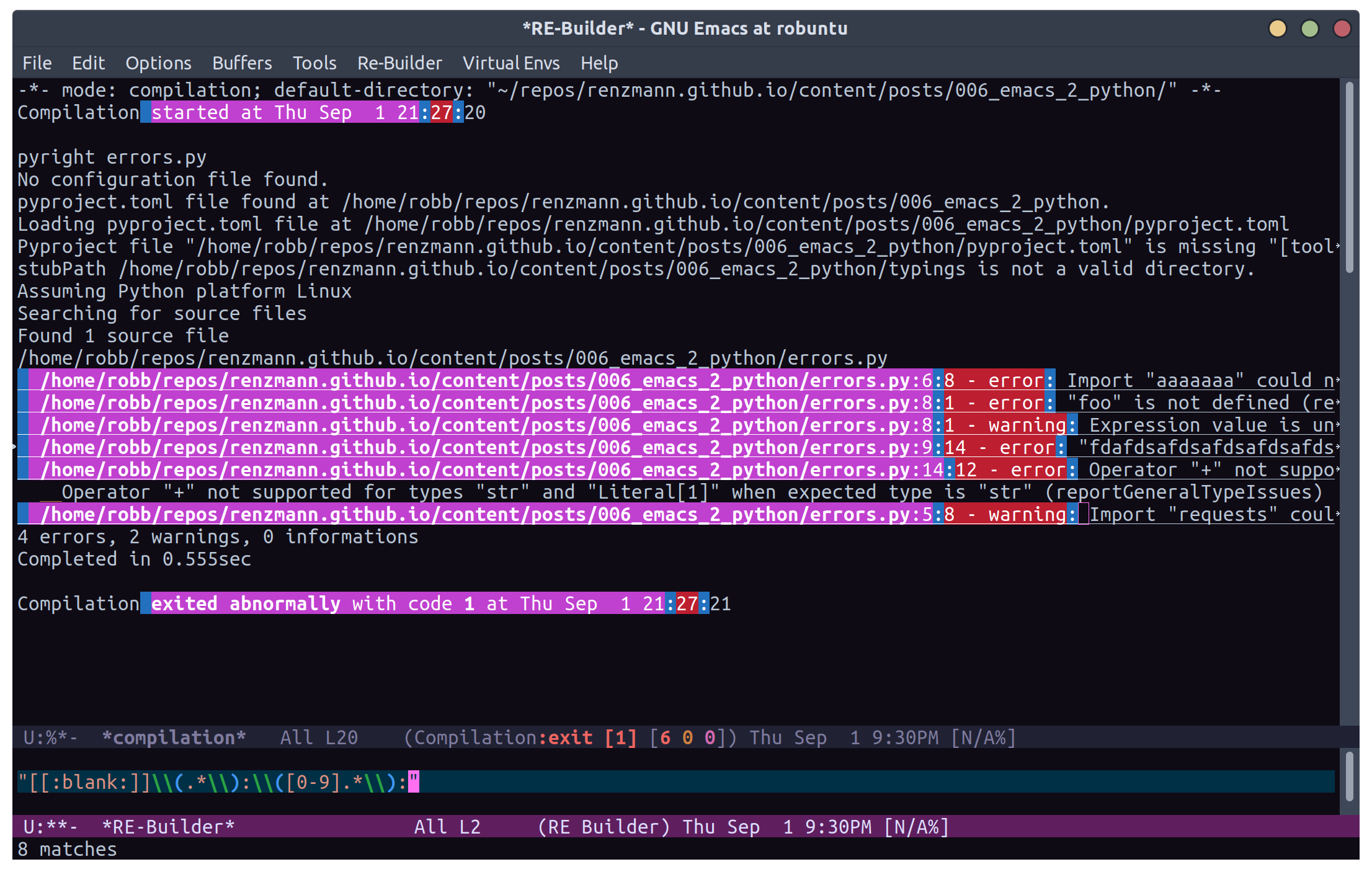
Clearly, there are some errors in the regexp so far, but as we edit the text
in the *RE-Builder* buffer, the highlighting in the
*compilation* buffer will update live to show us what would be
captured by the regexp we've entered. After fiddling with the contents in the
bottom buffer to get the highlighting correct, we've got this regular
expression:
"^[[:blank:]]+\\(.+\\):\\([0-9]+\\):\\([0-9]+\\).*$"
Now we just need to add this into the
compilation-error-regexp-alist-alist in our
init.el:
;; init.el
(require 'compile)
(add-to-list 'compilation-error-regexp-alist-alist
             '(pyright "^[[:blank:]]+\\(.+\\):\\([0-9]+\\):\\([0-9]+\\).*$" 1 2 3))
(add-to-list 'compilation-error-regexp-alist 'pyright)
After restarting emacs with the modified alist, we get error prasing from pyright output:
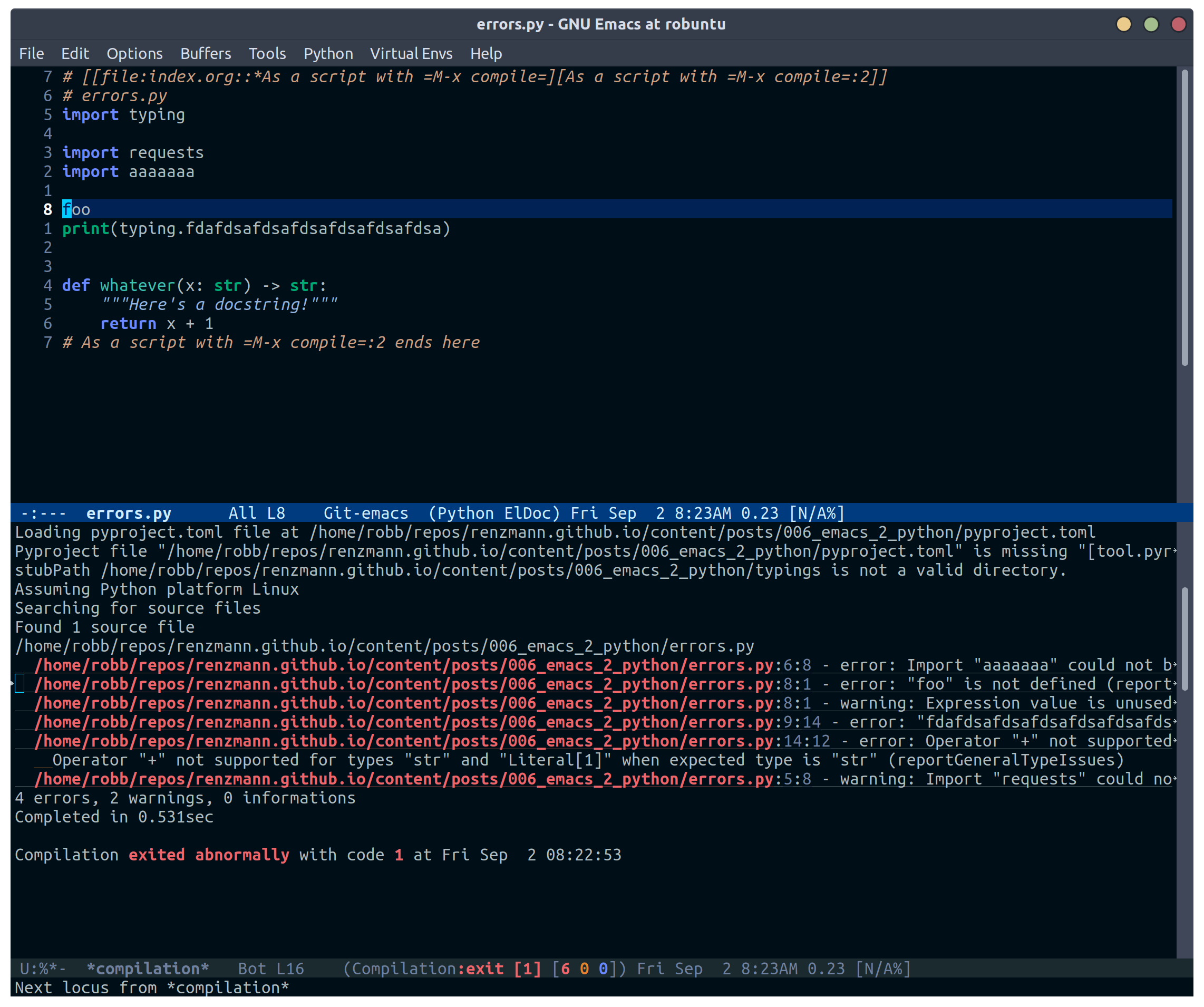
*compilation* buffer after running
pyright
Virtual Environments
Since I use poetry so frequently, and I can
prefix all of the Emacs or shell commands with
poetry run, it's pretty rare that I have to
invoke specific virtual environments. That said, this guide would have a
pretty large hole in it if we didn't mention the vanilla virtual environment
experience.
Most folks tend to run a slightly different virtual environment workflow from
one another. What I'm showing off below is the one I think fits most easily
with the flavor of vanilla already presented in this article, with some added
knowledge about how .dir-locals.el works (coming
up shortly).
Create a virtual environment
Keeping a .venv folder at the top level of a
project is one valid way to organize things, but (vanilla) Emacs isn't going
to make it easy for us to use it that way. Instead, I'd recommend keeping all
virtual environments in a central place. For me, that looks like this:
M-! python3 -m venv ~/.cache/venvs/website
This builds a virtualenv named website for
python utilities that help buld my blog under the
~/.cache directory on Unix. To use this
virtualenv explicitly for shell utilities, I can always run commands like this
M-! ~/.cache/venvs/website/bin/python -m pip install mypy
M-! ~/.cache/venv/website/bin/mypy errors.py
Of course, adding the prefix
~/.cache/venvs/website/bin every time is a bit
cumbersome, especially for frequent commands like
M-x python-check.
.dir-locals.el for setting virtual environment
One quick way to reduce some typing is to add entries in a project file called
.dir-locals.el. This is a special
data file that Emacs will read, if it exists, and apply to all new
buffers within the project. For our needs, we want to apply a couple changes
to python-mode specifically to use the virtual
environment instead of system python. The two easy ones are the
python-check-command and
python-shell-virtualenv-root:
;; .dir-locals.el
((python-mode . ((python-check-command . "%HOME%\\.cache\\venvs\\website\\Scripts\\python.exe -m mypy")
                 (python-shell-virtualenv-root . "~/.cache/venvs/website"))))
I've included a quirk of working on Microsoft Windows here - the
python-check-command needs to run through your
shell, which is cmd.exe by default, and hence requires
Windows-style paths. The
python-shell-virtualenv-root, however, is
evaulated by Emacs, and can use tilde-expansion and Unix-style paths. Changing
default shell commands to run through pwsh on Windows would
likely alleviate this issue, but it's worth calling out for
cmd.exe users.
It's also worth mentioning here that
M-x add-dir-local-variable provides an easy
interactive interface to editing the
.dir-locals.el file.
The python-shell-virtualenv-root part only
affects running Python as a shell within Emacs, it does not affect
things like PATH, async commands, or
M-x compile. To demonstrate this, once we've set
up .dir-locals.el as above, and we either revert
a Python buffer with C-x x g or open a new
Python buffer in the same project, a popup like this appears:
The local variables list in c:/Users/robbe/repos/renzmann.github.io/content/posts/006_emacs_2_python/
contains values that may not be safe (*).

Do you want to apply it?  You can type
y  -- to apply the local variables list.
n  -- to ignore the local variables list.
!  -- to apply the local variables list, and permanently mark these
      values (*) as safe (in the future, they will be set automatically.)
i  -- to ignore the local variables list, and permanently mark these
      values (*) as ignored

  * python-check-command : "%HOME%\\.cache\\venvs\\website\\Scripts\\python.exe -m mypy"
  * python-shell-virtualenv-root : "~/.cache/venvs/website"
Responding with y will set the
python-check-command and
python-shell-virtualenv-root for just the
current session, while ! will add both of these values to the
custom section in either init.el or
wherever you've set your custom-file. This is another reason for
using a common, central spot for virtual environments, since across
workstations I can use the same path relative to my
$HOME directory. After confirming, and using
C-c C-p, we can check which Python executable
we're using in the *Python* buffer now:
Python 3.10.6 (tags/v3.10.6:9c7b4bd, Aug  1 2022, 21:53:49) [MSC v.1932 64 bit (AMD64)] on win32
Type "help", "copyright", "credits" or "license" for more information.
>>> import sys; sys.executable
'c:\\Users\\robbe\\.cache\\venvs\\website\\Scripts\\python.exe'
Keep in mind, the values provided in
.dir-locals.el are evaluated on a per-buffer
basis, so attempting to set a relative path like
(python-shell-virtualenv-root . ".venv/website") will only work
when executing run-python in the same directory as
.dir-locals.el and
.venv/.
The various compile and shell commands will not respect the
virtualenv we've set via .dir-locals.el. On
*nix, M-x compile RET which python3 will still bring back some
variant of /usr/bin/python3, as will
M-& which python or M-! which python. In a
follow-up article we might explore how it is possible to take care of
all this via .dir-locals.el and the special
exec variable, but it's not very elegant.
All things considered: pyvenv
pyvenv
is a very lightweight package, clocking in at around 540 source lines of code,
designed specifically around the challenge of ensuring the correct python
virtual environment is at the front of PATH when running (async) shell
commands, M-x eshell,
M-x shell,
M-x term,
M-x python-check,
M-x compile, and more. When written, it was
based around virtualenv and
virtualenvwrapper.sh, and some of the language
it uses will reflect that. Although
virtualenv has mostly fallen out of favor, the
core functionality of pyvenv is still very
relevant. Especially if you choose to adopt a central store of virtual
environments, as above, you can set that as a
WORKON_HOME variable ("workon" is terminology
held over from virtualenvwrapper.sh) to a
directory that all your virtual environments sit under, so that it's easy to
select one with the pyvenv-workon function. When
using poetry, that usually looks like this:
(if (eq system-type 'windows-nt)
    ;; Default virtualenv cache directory for poetry on Microsoft Windows
    (setenv "WORKON_HOME" "$LOCALAPPDATA/pypoetry/Cache/virtualenvs")
  ;; Default virtualenv cache directory for poetry on *nix
  (setenv "WORKON_HOME" "~/.cache/pypoetry/virtualenvs"))
(pyvenv-mode)
Setting WORKON_HOME to
~/.cache/venvs as in the previous examples is
another valid option. Doing it this way also plays nice with
.dir-locals.el, since pyvenv exposes a way to set a
project-level venv with a single variable:
;; .dir-locals.el
((python-mode . ((pyvenv-workon . "website"))))
Also of use for folks who frequently swap between different projects is
(pyvenv-tracking-mode), which will automatically change the
active python virtual environment when you navigate to a different buffer.
And, of course, if the whole "workon" and virtualenvs grouped together under
~/.cache/venvs isn't to taste, there's always
M-x pyvenv-activate, which lets you choose a
virtual environement anywhere on your system. So, all-in-all, I'll probably
stick with pyvenv in my configuration, because
setting all the different utility PATHs without it is just such a pain.
Next: Notebooking
Belive it or not, we've only scratched the surface.
org-mode and
org-babel together provide a fully-functional
"notebooking" (technically "literate programming") experience out of the box
with recent versions of Emacs. The next article will focus exclusively on
Python and data science in Org as a near-complete Jupyter replacement.